News
2026-09-24
Human rights: part of professional training?
By: Alejandro García Suárez – Advisory Office of Communications



I am your virtual assistant, here to help you quickly and easily.
▲ Back to Top

Source: The Republic
By: Johana Lorduy
Messenger Rooms is Facebook's new platform that allows users to create free video conference rooms with up to 50 participants and no time limit.
If you are interested in exploring this new tool, here are some steps to help you create a video call.
The first thing you should know is that you can create rooms from Facebook, either through the app or the web version, and from Facebook Messenger for mobile and desktop. Additionally, your guests can join the video conference via WhatsApp and Instagram.
When you log into Facebook, you'll see a video camera icon that lets you create a room. Simply click it to begin.
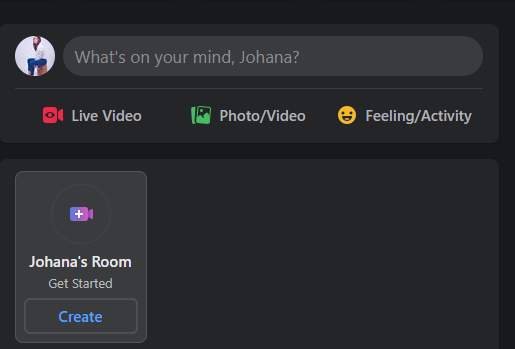
When you start with "Create Room," you'll find three options: Room Activity, where you can choose the conference topic; Who to Invite, where you can select participants and share the link; and finally, the start date and time.
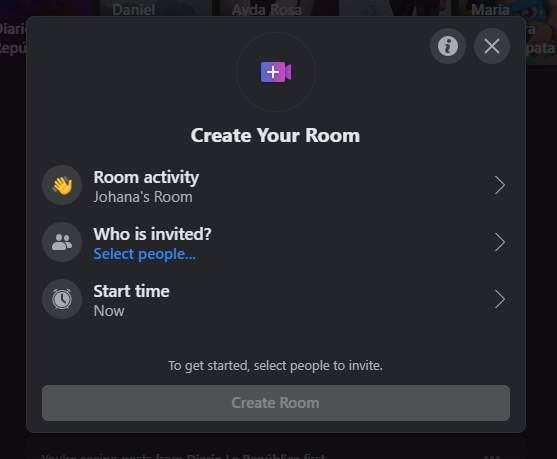
Once you have completed all these steps, click "Next" and the invitation will be automatically sent to the contacts you have selected. You can also post the room on your Facebook page, but only your invited guests will be able to see that post.
When you are inside the room, Messenger Rooms gives you the option to share your screen with other guests, and to lock or unlock your camera and microphone.
From the cell phone
If, on the other hand, you want to start the video conference from your cell phone, you must follow the same steps, starting with the selection of the video camera icon.
See full article at The Republic
News
News
News
News